
Claude + EasyDeploy AI
Add EasyDeploy to Claude in a few clicks.No installation required.
Claude talks to EasyDeploy through a standard connector (MCP). Once it is connected, you can work with your models, data, and projects from Claude on the web or in Claude Desktop.
Add the EasyDeploy connector
- Open Claude in the browser (claude.ai) or open the Claude Desktop app.
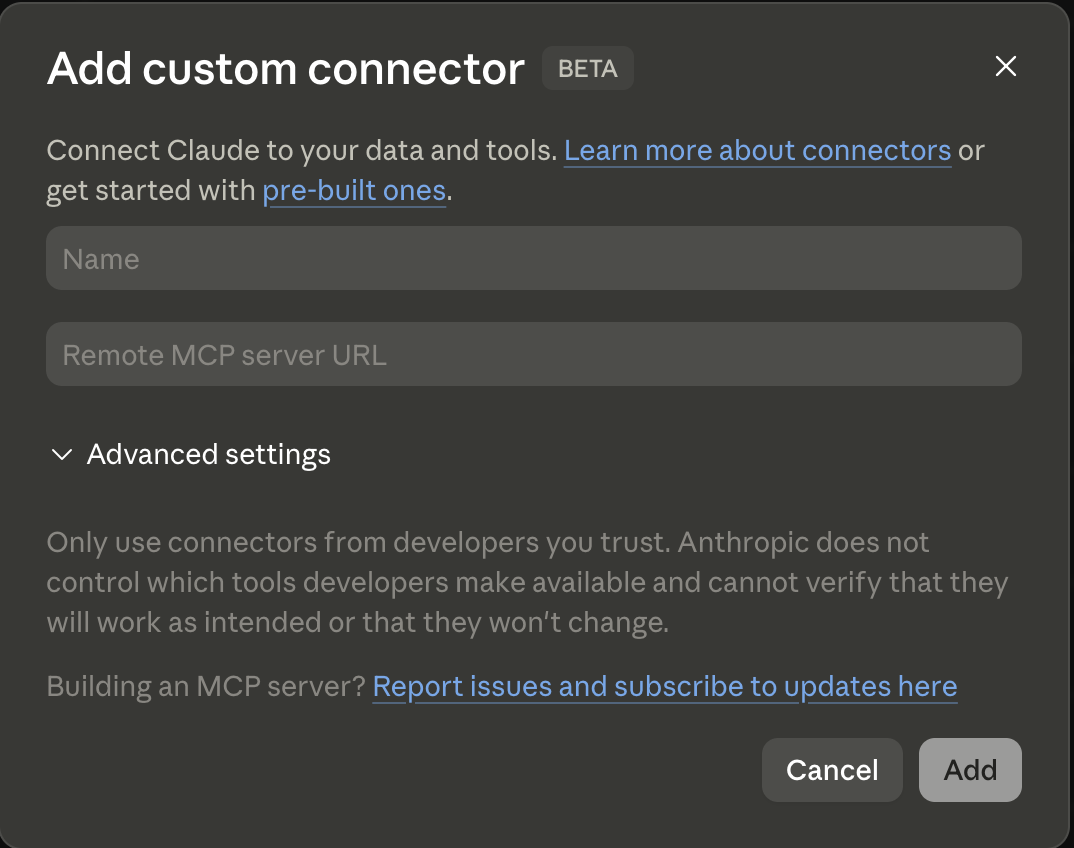
- Open Settings, then Connectors, and choose Add custom connector.
- Enter exactly:
- Name:
EasyDeploy AI - Remote MCP server URL:
https://mcp.easydeploy.ai/mcp
- Name:
- Save the connector so EasyDeploy appears in your list of connectors.
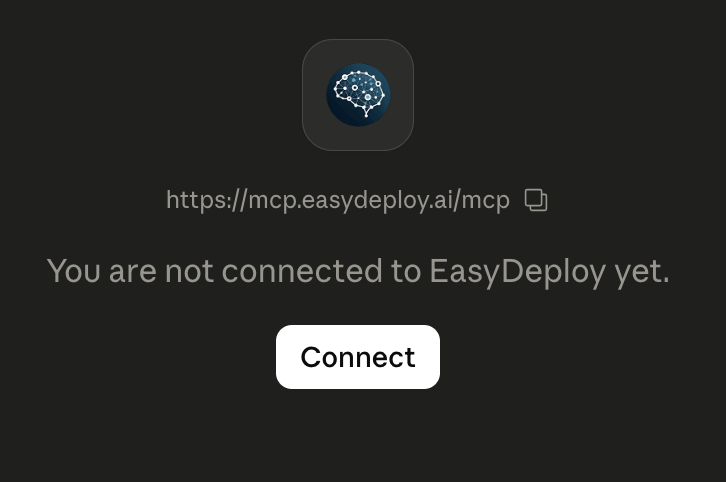
- Open the EasyDeploy connector entry and choose Connect, then finish sign-in in your browser. That step authorizes Claude to use your EasyDeploy account (see below).
Connect and sign in (inside Claude)
After the custom connector is set up, Claude shows an EasyDeploy card with the MCP URL and a Connect button. Use that flow to sign in. Access stays tied to the EasyDeploy profile you authenticate in the browser. Then new chats can use EasyDeploy in Claude like any other enabled connector.
Claude Desktop and file uploads
File uploads and some tool calls reach EasyDeploy over the network. On Desktop, Claude blocks outbound traffic unless you explicitly allow the domains it should call.
- Open Settings → Capabilities.
- Turn on Allow network egress.
- Under the domain allowlist, add this entry exactly (including the leading
*.):*.execute-api.us-east-1.amazonaws.com
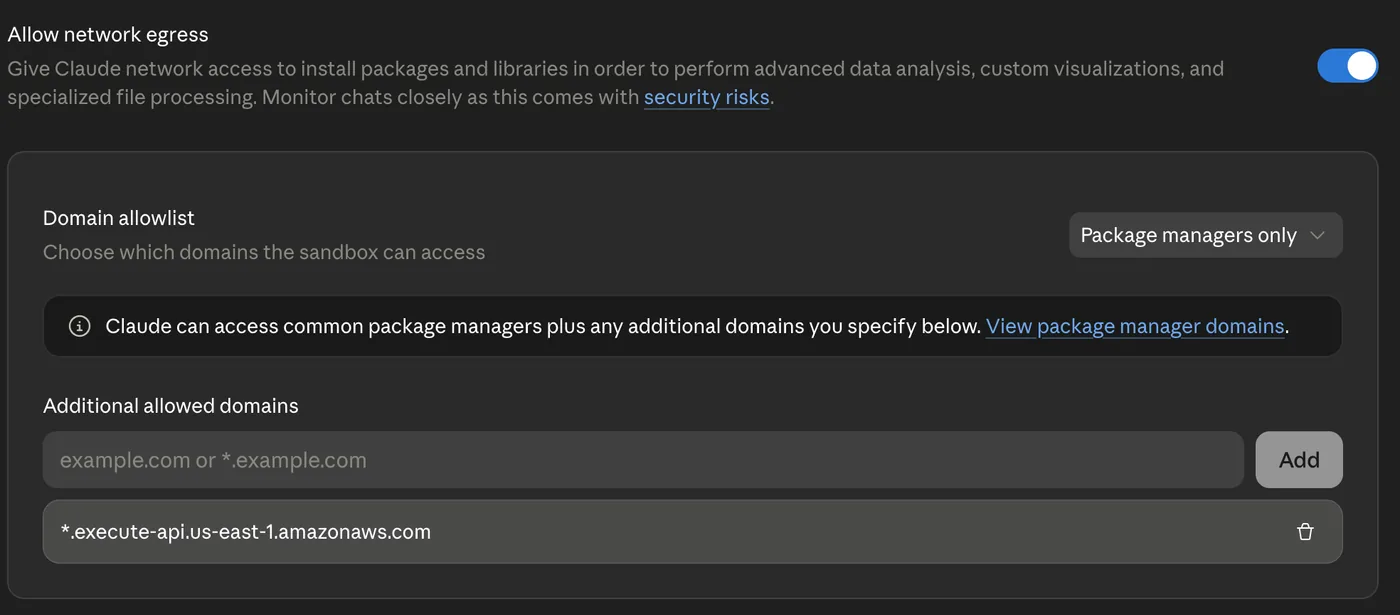
The domain allowlist UI is available on paid Claude plans.
Open source MCP server
The MCP server is open source. You can read the code, self-host, or contribute. The repository is on GitHub:
EasyDeploy-AI/easydeploy-ai-mcpEasyDeploy custom skills
Optionally add our Claude custom skill bundles. Each download is a
.skill file you upload once in Claude; use them together with the MCP connector.Data preparation playbook
A detailed data preparation playbook: cleaning tabular data, EDA, leakage checks, and label files ready for EasyDeploy AutoML training. Use with the MCP connector for projects, uploads, training, and predictions.
Invoice collection scoring
ML-powered accounts-receivable scoring: collection probability per open invoice, a rescue-first call list, cash flow forecast charts (base, naive, and ML scenarios), and an AR Intelligence dashboard. Requires QuickBooks and the EasyDeploy MCP connector.
Add the skill in Claude
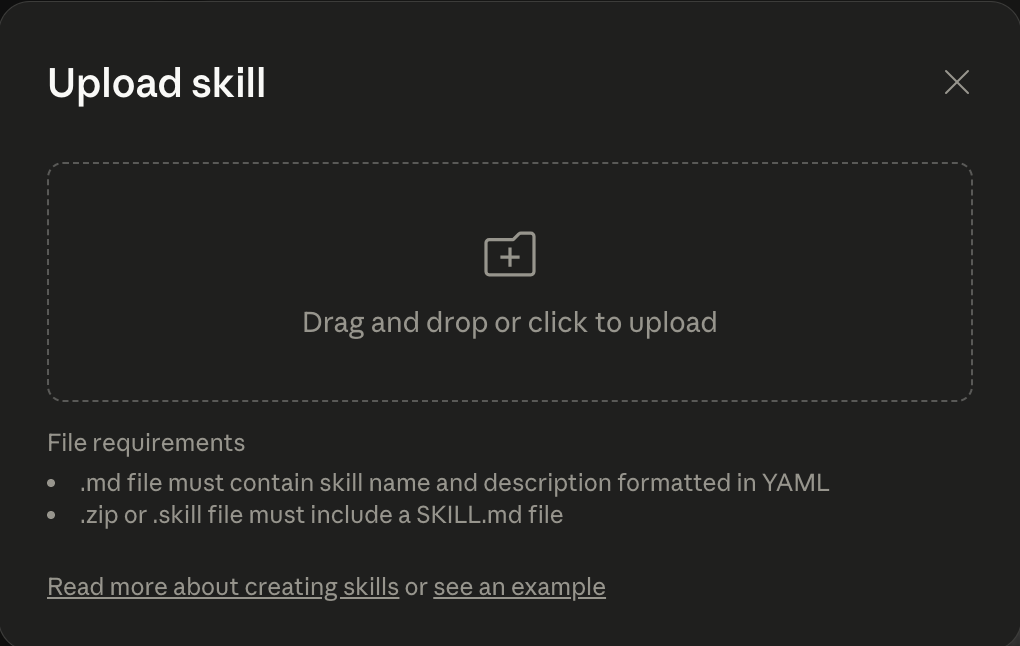
- Open Customize.
- Open Skills.
- Choose + Create Skill, then Upload a skill.
- Upload the
.skillfile you downloaded (drag and drop or browse). Repeat for each bundle you want — for example easydeploy.skill and easydeploy-invoice-score.skill. Each file must includeSKILL.mdinside the bundle; ours do.